

HDD vs SSD - Which Storage Device Is Better? Full Comparison 2026





Data Structures And Algorithms Made Easy
"Data Structures And Algorithms Made Easy: Data Structures and Algorithmic Puzzles" is a book that offers solutions to complex data structures and algorithms.
Whether you are buying a new laptop, upgrading your desktop, or setting up a server — one of the most important decisions you will make is which storage device to use. HDD and SSD are the two main options, and the difference between them goes far beyond just price. It affects how fast your computer boots, how quickly your applications open, how long your device lasts, and how much noise it makes while you work.
This guide covers everything you need to know about HDD vs SSD — how each works, where each excels, which one you should buy, and how to get the most out of your SSD once you have one.
What Is an HDD?
A Hard Disk Drive (HDD) is a mechanical storage device that has been around since the 1950s. It stores data on spinning magnetic platters. A read/write head moves across the surface of these platters to read and write data — similar to how a record player works.
Because data is stored physically across different sections of the spinning disk, the speed at which the HDD can access that data depends on how fast the disk spins (measured in RPM — revolutions per minute) and how quickly the read/write head can move to the correct position. Most consumer HDDs spin at 5400 RPM or 7200 RPM.
The mechanical nature of HDDs is both their biggest limitation and the reason they are still around — that same spinning platter technology allows manufacturers to produce very large storage capacities at very low cost per gigabyte.
What Is an SSD?
A Solid State Drive (SSD) has no moving parts. It stores data on NAND flash memory chips — the same type of memory used in USB drives and smartphone storage, but faster and built for sustained read/write workloads. Because there are no mechanical parts, data is accessed almost instantly — the drive does not need to wait for a platter to spin to the right position or a head to move to the right track.
SSDs connect to your computer via different interfaces:
- SATA SSD — uses the same connector as older HDDs. Speeds up to around 550 MB/s read. A significant upgrade from HDD but limited by the SATA interface.
- NVMe SSD (M.2) — connects directly to the PCIe bus on your motherboard. Speeds of 3,500–7,000 MB/s read on modern drives. The fastest consumer storage available today. Most new laptops and desktops use this.
HDD vs SSD — Head to Head Comparison
| Factor | HDD | SSD |
|---|---|---|
| Read Speed | 80 — 160 MB/s | 500 — 7000 MB/s |
| Write Speed | 80 — 130 MB/s | 400 — 6500 MB/s |
| Boot Time | 30 — 90 seconds | 5 — 15 seconds |
| Moving Parts | Yes — platters and head | No |
| Noise | Audible clicking / spinning | Silent |
| Heat Generated | More heat | Less heat |
| Power Consumption | 6 — 15 watts | 2 — 5 watts |
| Battery Impact | Drains battery faster | Better battery life |
| Shock Resistance | Fragile — moving parts | Excellent — no moving parts |
| Lifespan | 3 — 5 years typical | 5 — 10 years typical |
| Storage Capacity | Up to 20 TB (consumer) | Up to 8 TB (consumer) |
| Price per GB | Very cheap — ~$0.02/GB | ~$0.07 — $0.15/GB |
| Best For | Bulk storage, backups, archives | OS, applications, active files |
Speed Difference — What It Feels Like in Real Life
The speed numbers in the table above are meaningful but abstract. Here is what the difference actually feels like when you use a computer day to day:
- Boot time: On an HDD, starting Windows takes 60–90 seconds from power button to usable desktop. On an SSD — 8–12 seconds. Same operating system, same files, purely the storage speed difference.
- Application launch: Opening Chrome, VS Code, or Photoshop on an HDD can take 10–20 seconds. On an SSD — 1–3 seconds.
- File transfers: Copying a 10 GB folder on an HDD takes several minutes. On an NVMe SSD — under 30 seconds.
- Game load times: Level loading screens that take 45 seconds on HDD take 8–12 seconds on SSD. This is why game consoles moved to SSDs.
- Opening large codebases: Indexing a large project in IntelliJ or VS Code on HDD can freeze the machine for minutes. On SSD — seconds.
Where HDD Still Wins
Despite SSDs being faster in almost every measurable way, HDDs are not obsolete. There are specific situations where HDD is the right choice:
- Bulk storage and archives — storing large video libraries, photo archives, backups, and media collections. When you need 4–16 TB of storage and speed is not critical, HDD gives you 10x more capacity per rupee.
- NAS and home servers — network attached storage for media streaming, home backups, or file sharing typically uses HDDs because the bottleneck is the network speed (not the drive) and the cost savings on large capacities are significant.
- Cold storage and long-term archiving — SSDs can lose data if left unpowered for extended periods (years). HDDs are more reliable for data stored in a drawer for ten years.
- Budget builds where capacity matters — if someone needs 2 TB of storage and has a very limited budget, an HDD is still the only realistic option.
Should You Replace Your HDD With an SSD?
If your main drive — the one where your operating system and applications are installed — is an HDD, upgrading it to an SSD is the single highest impact upgrade you can make to an older computer. More than adding RAM, more than any other hardware change.
A five-year-old laptop that boots in 90 seconds, freezes when opening applications, and feels sluggish overall will feel like a different machine after an SSD upgrade. The processor and RAM are not the bottleneck in most everyday tasks — the storage is. Remove that bottleneck and the computer responds faster at every level.
The upgrade is straightforward on most laptops and desktops — many have a second drive bay where you can add an SSD alongside the existing HDD, keeping the HDD for bulk storage and putting the OS and applications on the SSD.
How to Make Your SSD Last Longer
SSDs have a finite number of write cycles — each memory cell can only be written to a certain number of times before it wears out. Modern SSDs are rated for TBW (Terabytes Written) — typically 150–600 TBW for consumer drives — which is enough for most users over many years. But there are practices that help extend SSD life significantly:
- Do not fill the SSD to capacity — keep at least 10–20% free. SSDs need free space for wear levelling and garbage collection. A drive at 95% capacity degrades in performance and accelerates wear.
-
Enable TRIM — TRIM tells the SSD which data blocks
are no longer in use so it can clean them efficiently. Windows enables
TRIM automatically for SSDs. On Linux, verify it is active with
sudo fstrim -v /. - Disable defragmentation — defragmentation is designed for HDDs and causes unnecessary write cycles on SSDs without any benefit. Windows automatically disables defrag for SSDs but check that it is not scheduled.
- Move your browser cache and temp files — browsers and some applications write frequently to cache folders. Moving these to a RAM disk or an HDD reduces unnecessary SSD writes.
- Keep your SSD firmware updated — manufacturers release firmware updates that improve efficiency and fix bugs that can affect performance and lifespan.
- Use an SSD optimisation tool — software tools can automate many of these optimisations, monitor your drive health, and alert you to potential issues before data loss occurs.
Optimise and Protect Your SSD With SSD Fresh
If you want to make sure your SSD is properly configured, performing optimally, and protected against premature wear — SSD Fresh is a dedicated tool built specifically for this purpose. It automatically adjusts Windows settings for SSD operation, reduces unnecessary write cycles, checks drive health in real time, and provides a clear dashboard showing everything about your drive's status.
Rather than manually hunting through Windows settings to configure TRIM, disable unnecessary write-heavy features, and monitor drive health — SSD Fresh handles it all in a few clicks and keeps your drive running efficiently over its lifetime.
🛡️ Extend Your SSD Lifetime — SSD Fresh 2025
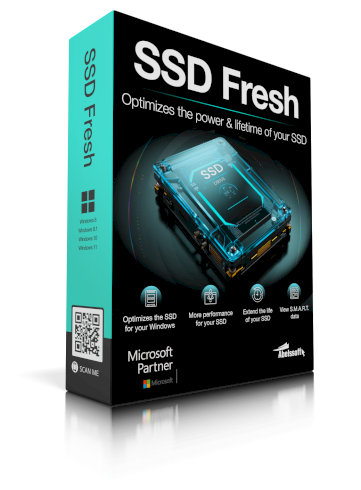
SSD Fresh automatically optimizes Windows for SSD use, monitors drive health, and helps your SSD last significantly longer.
Which Should You Buy in 2026?
Buy an SSD if:
- It is your primary drive for the operating system and applications
- You are buying a new laptop or desktop
- You want fast boot times and snappy application performance
- You travel frequently and need a drive that handles bumps and drops
- Battery life matters — laptops with SSDs last noticeably longer
- You are a developer — faster build times, faster IDE indexing, better overall experience
Buy an HDD if:
- You need large capacity storage (4 TB+) at the lowest possible cost
- It is a secondary drive for backups, videos, and archives
- You are building a NAS or home media server
- Long-term cold storage where data will sit unpowered
Best of Both Worlds — Use Both
The ideal setup for a desktop or tower is to use both. A 500 GB or 1 TB NVMe SSD for your operating system, applications, and active project files — and a 2–4 TB HDD for media, backups, and anything you do not need fast access to. You get the speed of SSD where it matters and the capacity of HDD at low cost where it does not.
Final Thought
The HDD vs SSD debate had a clear answer some years ago and it is even clearer now. For any drive where performance matters — your primary drive, your development machine, your laptop — SSD is the right choice, full stop. The price difference has narrowed significantly, the performance gap has only widened, and the reliability advantage of no moving parts is real.
HDDs still serve a purpose for bulk storage and archiving — they offer capacities and cost-per-GB ratios that SSDs cannot match. But as a primary drive, there is no scenario in 2026 where an HDD is the better choice.
If you already have an SSD and want to make sure it is properly optimised and protected — take a look at SSD Fresh — it handles the optimisation settings automatically and keeps your drive healthy for the long term.
Data Structures And Algorithms Made Easy
"Data Structures And Algorithms Made Easy: Data Structures and Algorithmic Puzzles" is a book that offers solutions to complex data structures and algorithms.
📚 You Might Also Like
- → Best Google AdSense Alternative 2026 - Monetag Review for Publishers miscellaneous
- → Top Java Interview Questions for 6+ Years Experience (2026) java
- → How to Start Freelancing as a Web Developer in 2026 (Complete Beginner's Guide) miscellaneous
- → HTTP QUERY Method (RFC 10008) — The New HTTP Method Every Developer Should Know miscellaneous
- → MyLync - Best Free Linktree Alternative for Developers, Creators & Businesses miscellaneous